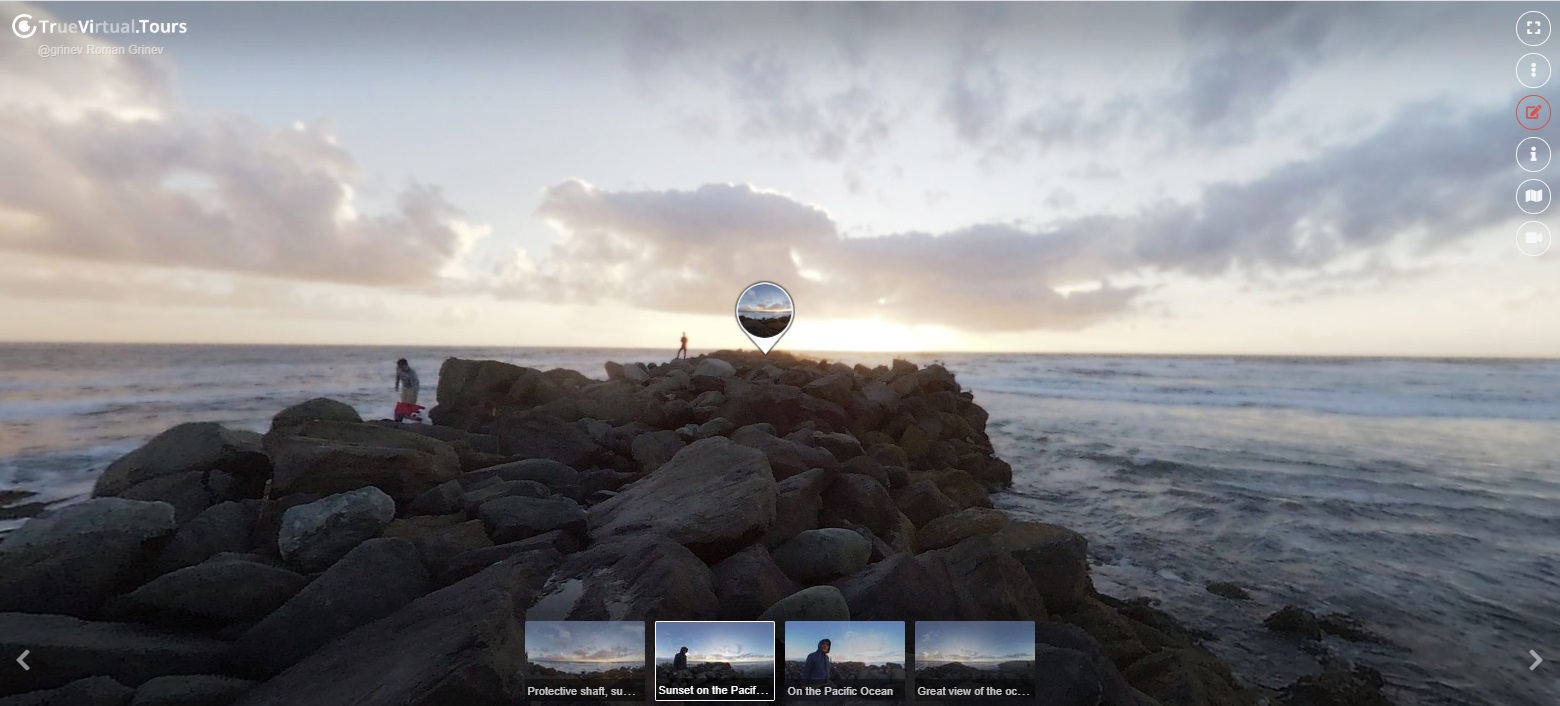
360° panoramas of this virtual tour, page 2

IMG 20230223 143257 00 078-DeNoiseAI-low-light
IMG 20230223 142308 00 065-DeNoiseAI-low-light
IMG 20230223 142158 00 064-DeNoiseAI-low-light
IMG 20230223 141641 00 058-DeNoiseAI-low-light
IMG 20230223 141855 00 061-DeNoiseAI-low-light
IMG 20230223 142029 00 063-DeNoiseAI-low-light
IMG 20230223 141737 00 059-DeNoiseAI-low-light
IMG 20230223 141815 00 060-DeNoiseAI-low-light
IMG 20230223 141534 00 057-DeNoiseAI-low-light
IMG 20230223 140822 00 049-DeNoiseAI-low-light
IMG 20230223 140927 00 050-DeNoiseAI-low-light
IMG 20230223 141027 00 051-DeNoiseAI-low-light
IMG 20230223 141124 00 052-DeNoiseAI-low-light
IMG 20230223 141212 00 053-DeNoiseAI-low-light
IMG 20230223 141303 00 054-DeNoiseAI-low-light
IMG 20230223 140720 00 048-DeNoiseAI-low-light
IMG 20230223 140621 00 047-DeNoiseAI-low-light

117 Red Banner Ave., Vladivostok, Primorsky Territory, Russia, 690014

MES
Showing 25-42 of 42 items.
  • today
    John Smith

How to create a virtual 3D tour? Step-by-step instruction

The order is as follows: 1) upload to the site spherical panoramas from which you plan to create a virtual tour; 2) from the list of uploaded panoramas add each panorama to the virtual tour (Add to 3D tour link); 3) open the created virtual tour, edit the panorama order, select the main panorama, set transition points (tunnels).

Learn more